Swipe
Shoppers swipe through products and add their picks in one tap.
Download and install
Download Swipe 1.2.7 (.zip, 256 KB)
- Go to Plugins → Add New Plugin → Upload Plugin.
- Choose the zip you downloaded, then click Install Now.
- Click Activate Plugin.
- Open Factorize → Swipe.
Already installed? Updates arrive in Plugins like any other plugin. Full install guide
Where to find it
Factorize → SwipeBlock: Swipe DeckElementor: Swipe DeckWhat it does
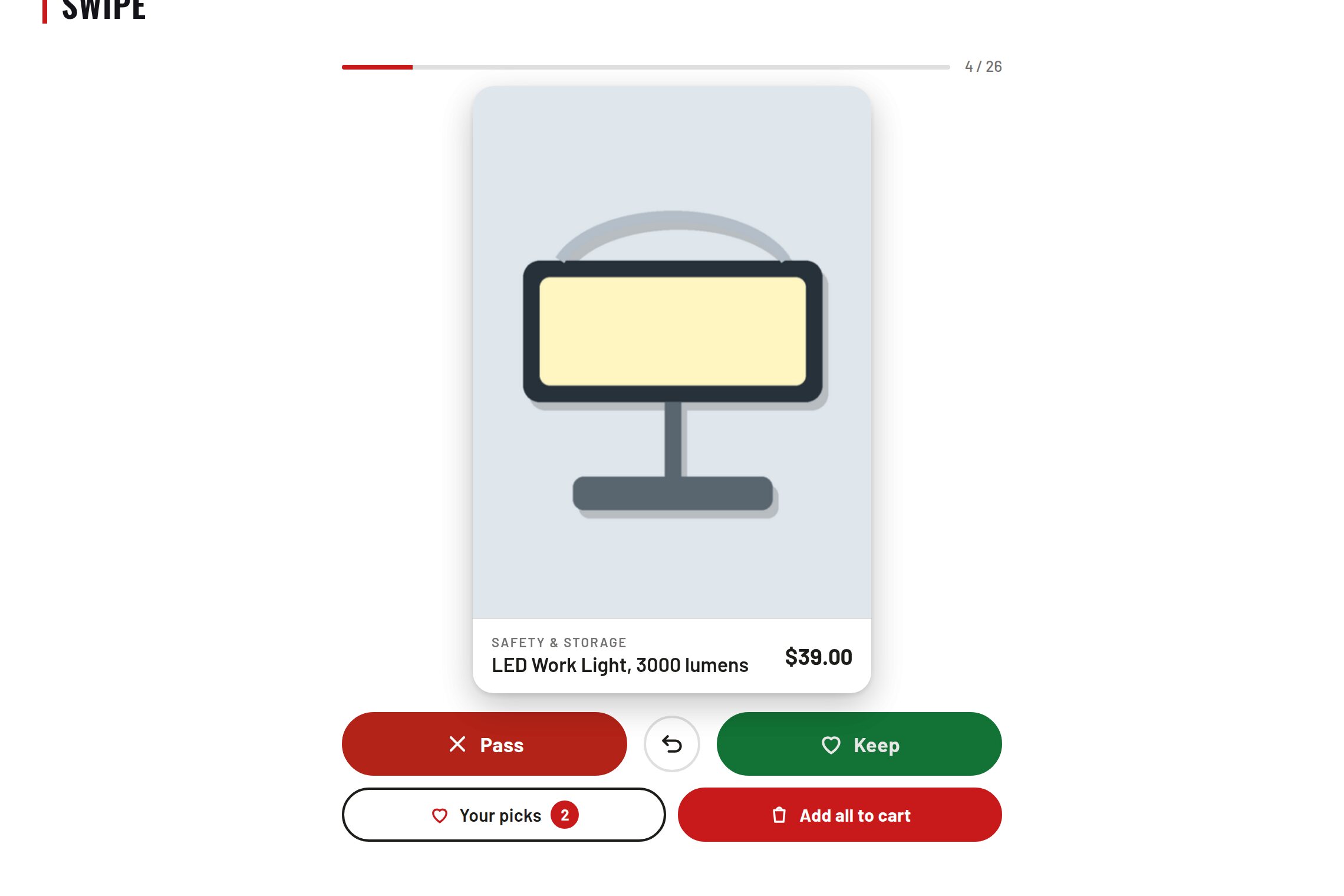
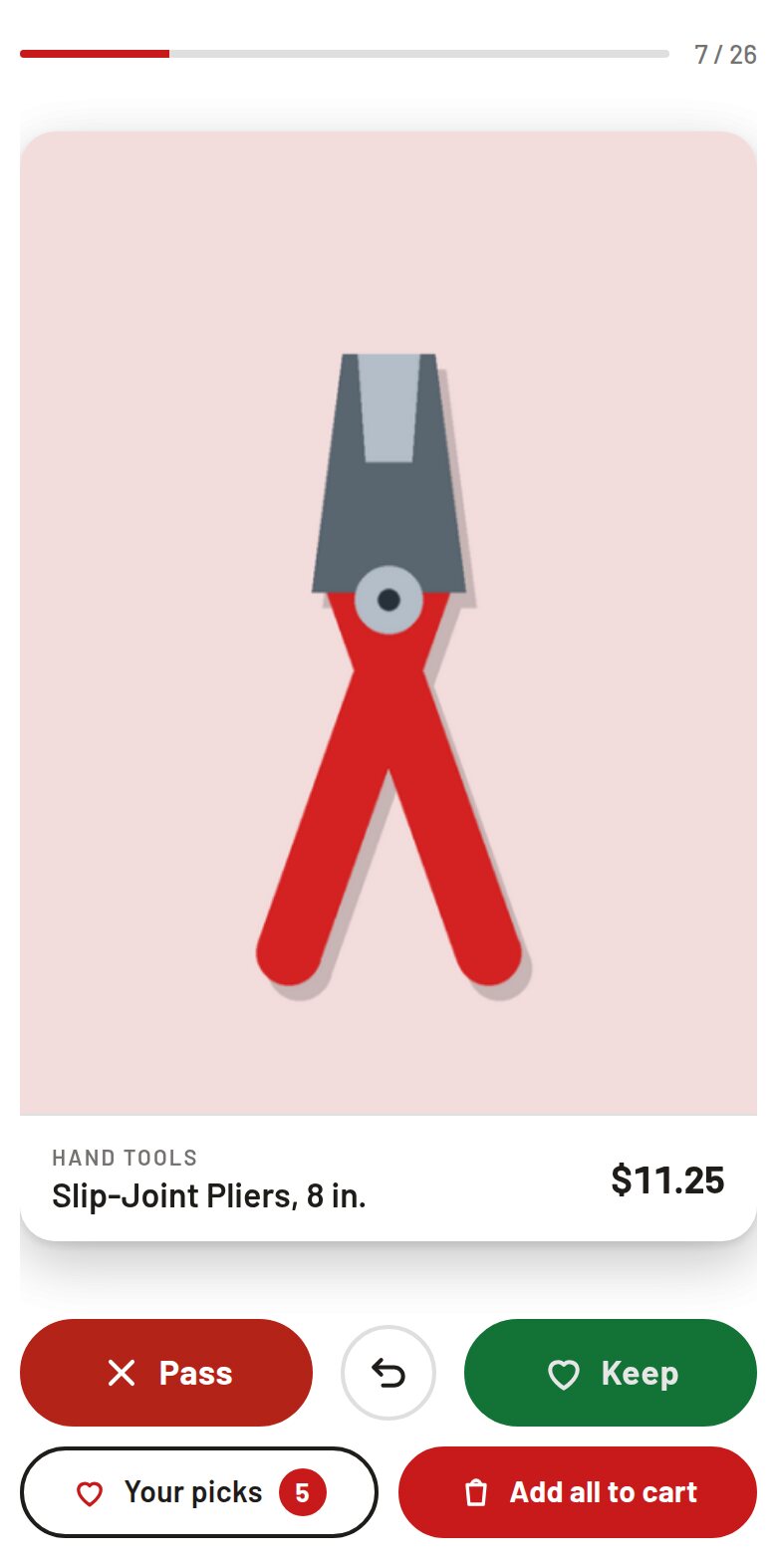
- One product at a time: swipe or tap right to keep, left to pass.
- A picks panel adds one or all of them to the cart, then goes to the cart.
- A "your taste" podium, and odds that lean gently toward what each shopper keeps.
- A block, an Elementor widget and a shortcode. Colours come from your theme.
Screenshots
What it does for you
Turn browsing into a quick yes/no: one product fills the card, a swipe or tap keeps or passes it, and the picks panel adds one or every kept product to the cart. A “your taste” podium shows the three categories a shopper keeps most, and the deck gently leans toward them while still showing variety.
Features
- One card at a timeSwipe or tap right to keep, left to pass; buttons, undo and arrow keys for everyone who does not swipe.
- Picks to cart in one tapAdd a single pick or all of them; variable products go in as their default options, then the shopper lands on the cart.
- Your-taste podiumThe top three kept categories, 2nd–1st–3rd, at the top of the picks panel.
- Odds that adaptEach keep raises its category's odds a little, capped (balanced: 1.6×), and no category shows more than twice in a row.
- Works in any themeTheme mode reads the page's own colours, so it fits light and dark themes; custom colours, shape and labels on the settings screen.
- Block, Elementor, shortcodeA Swipe Deck block and Elementor widget with per-deck settings, or [factorize_swipe] anywhere.
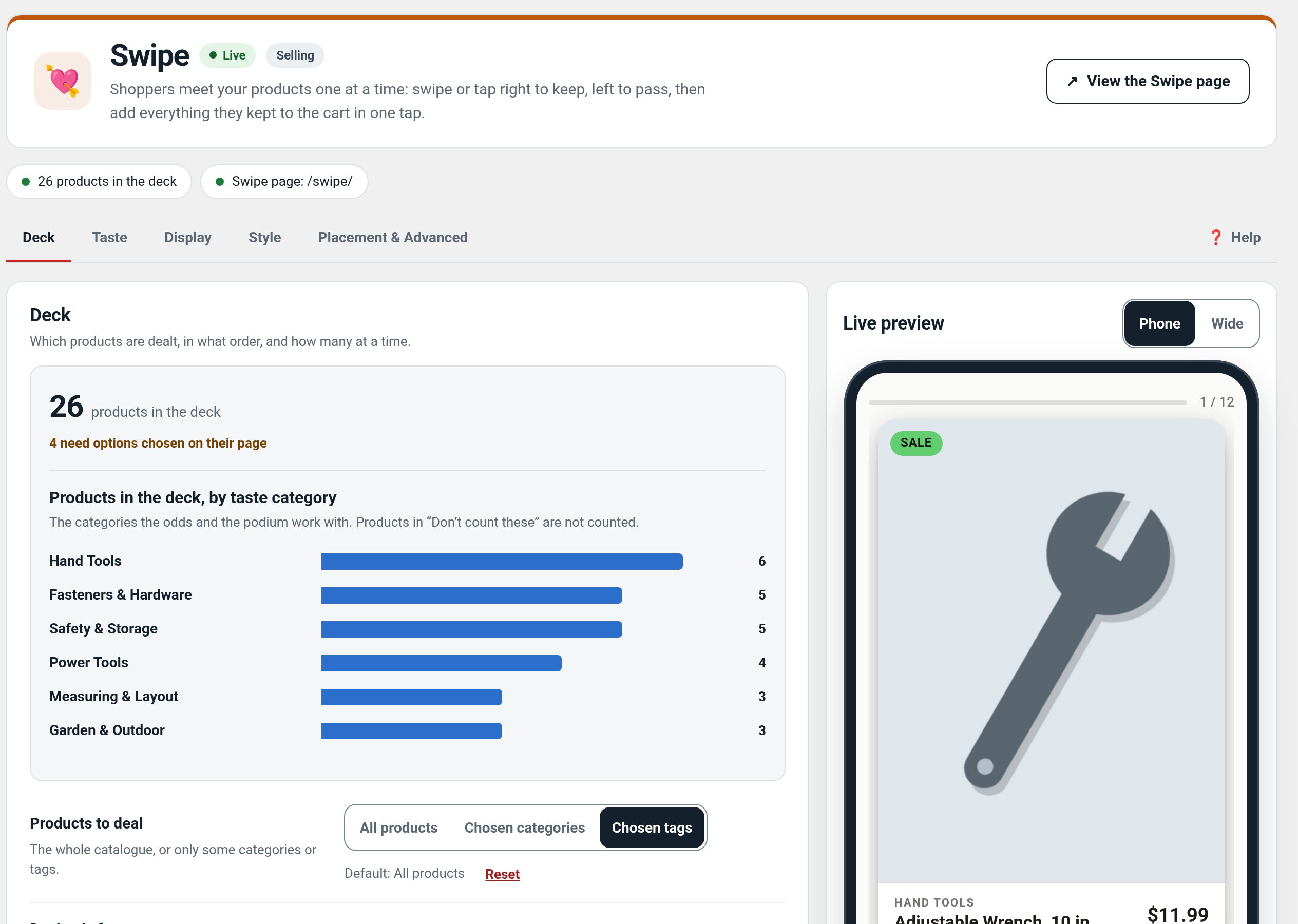
- Live settings previewFactorize → Swipe shows the real deck in a phone frame as you change settings.
Use cases
A phone-first store that wants shoppers to browse by quick yes/no decisions and check out their picks together.
Example
Keep three tees, open Your picks, and add all three to the cart in one tap.
Quick setup
- Activate Swipe and open Factorize → Swipe; choose the products on the Deck tab (all, or chosen categories/tags).
- Make sure variable products have Default Form Values so one tap can add them; the Deck tab counts the ones that do not.
- Place it: Placement → Create the Swipe page, or add the Swipe Deck block / Elementor widget to any page.
- On a phone, keep two products, open Your picks, and use Add all to cart to confirm they land in the cart.
Configuration
| key | default | effect |
|---|---|---|
source | all | all | categories | tags |
include_terms | category or tag slugs, comma-separated | |
order | shuffle | shuffle | menu_order | newest | popularity | price_low |
taste_strength | balanced | subtle | balanced | strong |
taste_ignore | uncategorized | terms that never count as taste |
podium_enabled | true | show the your-taste podium |
layout | fixed | fixed height, or screen to fill the phone |
after_add_all | cart | cart | checkout | stay |
style_mode | theme | theme colours, or custom |
Set any subset with WP-CLI — wp option update factorize-swipe_options '{"key":"value"}' --format=json — or return values from the factorize-swipe_config filter in a small plugin. Legacy empire-* option names are still read.
Any setting also works per deck as a shortcode attribute, e.g. [factorize_swipe source="categories" include_terms="tees" layout="screen"]. Picks live in the shopper's browser, never in a PHP session, so pages stay cacheable.
Step-by-step guide
- ExampleA tee shop deals only its T-shirts category, ignores the garment categories for taste, and adds a Swipe Deck to the home page; a shopper keeps six designs, sees Cats on top of the podium, and adds all six to the cart.
Q&A
Do shoppers need an account?
No. Picks and taste are kept in their browser; with Factorize Saves active, keeps can also be mirrored into the Saved list.
What if a product has options?
Variable products add as their default options; without defaults, the pick links to the product page to choose.
Will it match my theme?
In theme mode it reads your page's colours and your theme's accent; Match my theme turns them into editable custom colours.
Roadmap
What I need from you
Recent changes
- 1.2.7
- Placement and Advanced are two tabs.
- 1.2.6
- Skips recording on a Simulate studio preview request (factorize_preview_request).
- 1.2.5
- Suite hub 1.12.3: the support bubble lifts above the save bar while the bar is on screen (on phones it no longer covers Save).