Storefront
A photo band and a visit-the-store block for the home page.
Download and install
Download Storefront 1.2.0 (.zip, 176 KB)
- Go to Plugins → Add New Plugin → Upload Plugin.
- Choose the zip you downloaded, then click Install Now.
- Click Activate Plugin.
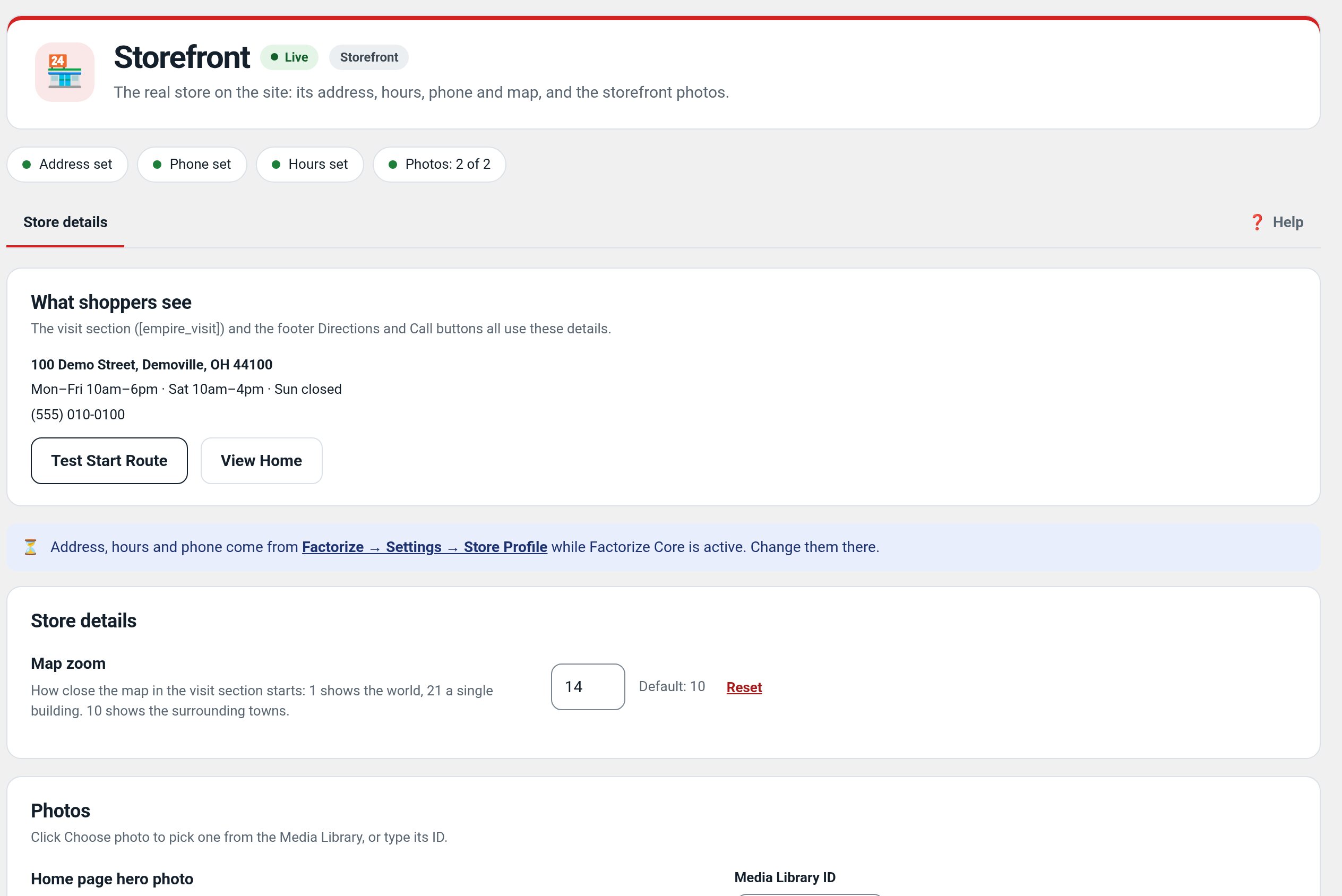
- Open Factorize → Storefront.
Already installed? Updates arrive in Plugins like any other plugin. Full install guide
Where to find it
Factorize → StorefrontWhat it does
- The [empire_storefront] photo band with your tagline.
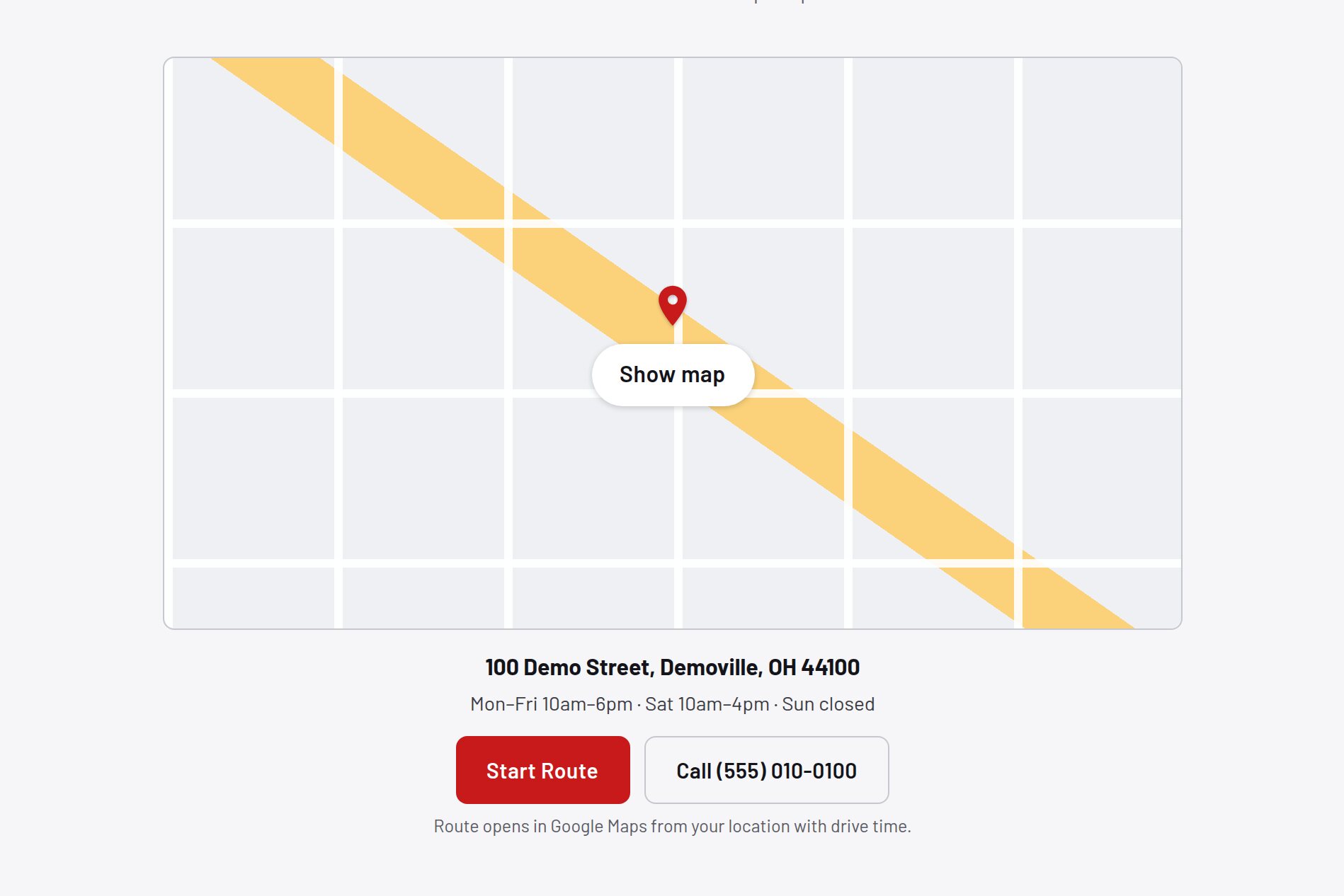
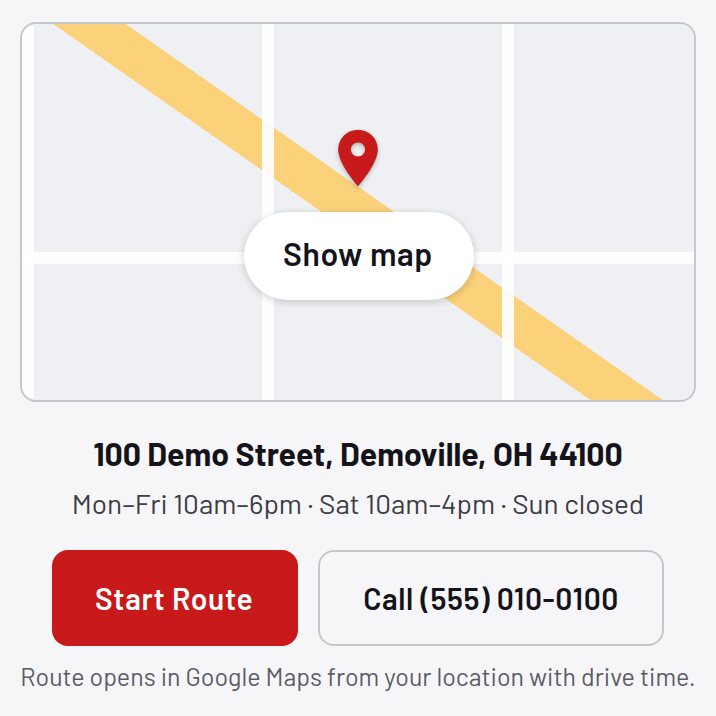
- The [empire_visit] block: map, address, hours.
- Start Route and Call buttons that open on the phone.
Screenshots
What it does for you
Your store is real — customers can walk in and drive home with the deal — but most WooCommerce home pages never show it. Storefront puts the physical store front and center: a full-width photo band with a tagline overlay, a store-visit section with an embedded map, address, hours, one-tap directions and click-to-call, plus hero-photo wiring so the theme can fade a storefront photo into the page with pure CSS.
Features
- [empire_storefront] bandFull-width storefront photo with a tagline and sub-line; both overridable per use (tagline="…" sub="…").
- Media Library photo managementThe band photo is an attachment ID in the et_storefront_image option — swap it from the library.
- [empire_visit] blockEmbedded map, street address, opening hours, a routing note, Start Route and Call buttons.
- Keyless Google Maps embedThe free embed iframe — no API key, no billing account; lazy-loaded.
- Geolocation-free directionsStart Route opens Google Maps with only the destination; Maps supplies the visitor’s location.
- Hero-photo wiringPublishes the hero image URL as the --et-hero-photo CSS custom property on wp_head.
- Graceful empty statesNo photo set → no broken band; no hero → no style tag.
- Configurable identityAddress, hours, and phone come from factorize-storefront_options (the Site Builder and Setup fill them in).
Use cases
A local retailer who wants online shoppers to find the physical shop, hours, and directions.
Example
Add [empire_visit] below the home-page deals so phone users can call or start directions.
Quick setup
- Activate. The Storefront card appears under the hub’s Storefront tab.
- Upload the storefront photo (≥ 1600×640) and note its attachment ID; set it: wp option update et_storefront_image 123 (and et_hero_image 456 for the hero).
- Add [empire_storefront] and [empire_visit] to the home page (any editor that renders shortcodes).
Configuration
| key | default | effect |
|---|---|---|
maps_zoom | 10 | zoom level of the map embed |
address | 21590 Alexander Rd, Oakwood Village, OH 44146 | shown in the Visit block |
hours | Mon–Fri 10am–6pm · Sat 10am–4pm · Sun closed | opening hours line |
phone | (216) 609-8475 | click-to-call number |
Set any subset with WP-CLI — wp option update factorize-storefront_options '{"key":"value"}' --format=json — or return values from the factorize-storefront_config filter in a small plugin. Legacy empire-* option names are still read.
The two photos are separate attachment-ID options: et_hero_image and et_storefront_image. Markup uses stable .et-storefront*, .et-visit*, .et-btn classes; the Empire theme styles them (including the dark-map filter).
Step-by-step guide
- Set your identitywp option update factorize-storefront_options '{"address":"48 Market St, Columbus, OH 43215","hours":"Daily 10–6","phone":"(614) 555-0100"}' --format=json
- Put the band on the home pageEdit Home, add a Shortcode block: [empire_storefront tagline="Everyday style, honest prices." sub="New arrivals every week."]
- Add the visit blockBelow your deals: [empire_visit] — check the pin lands on the store and Start Route opens directions on a phone.
- Swap the photo any timeUpload a new image, copy its ID, update et_storefront_image. No page edit needed.
Q&A
Why does [empire_storefront] output nothing?
et_storefront_image is not set or points to a deleted attachment — that empty state is deliberate.
Does any data leave my server?
The plugin makes no requests; the visitor’s browser loads the Google map iframe directly.
Multiple locations?
On the roadmap; today one address/hours/phone set.
Roadmap
- Multiple store locations
- Opening-hours rich results
- Holiday hours
- Photo gallery band
- Announcement bar
What I need from you
Recent changes
- 1.2.0
- What shoppers see preview from the unsaved Store details.
- 1.1.5
- Suite hub 1.12.3: the support bubble lifts above the save bar while the bar is on screen (on phones it no longer covers Save).
- 1.1.4
- Suite hub 1.12.2: an SEO tab on the Factorize dashboard for the new SEO modules.