Analytics
Views and add-to-carts per product, without a tracker.
Download and install
Download Analytics 1.6.3 (.zip, 587 KB)
- Go to Plugins → Add New Plugin → Upload Plugin.
- Choose the zip you downloaded, then click Install Now.
- Click Activate Plugin.
- Open Factorize → Analytics.
Already installed? Updates arrive in Plugins like any other plugin. Full install guide
Where to find it
Factorize → Store StatsWhat it does
- Lifetime and 7-day counters for every product.
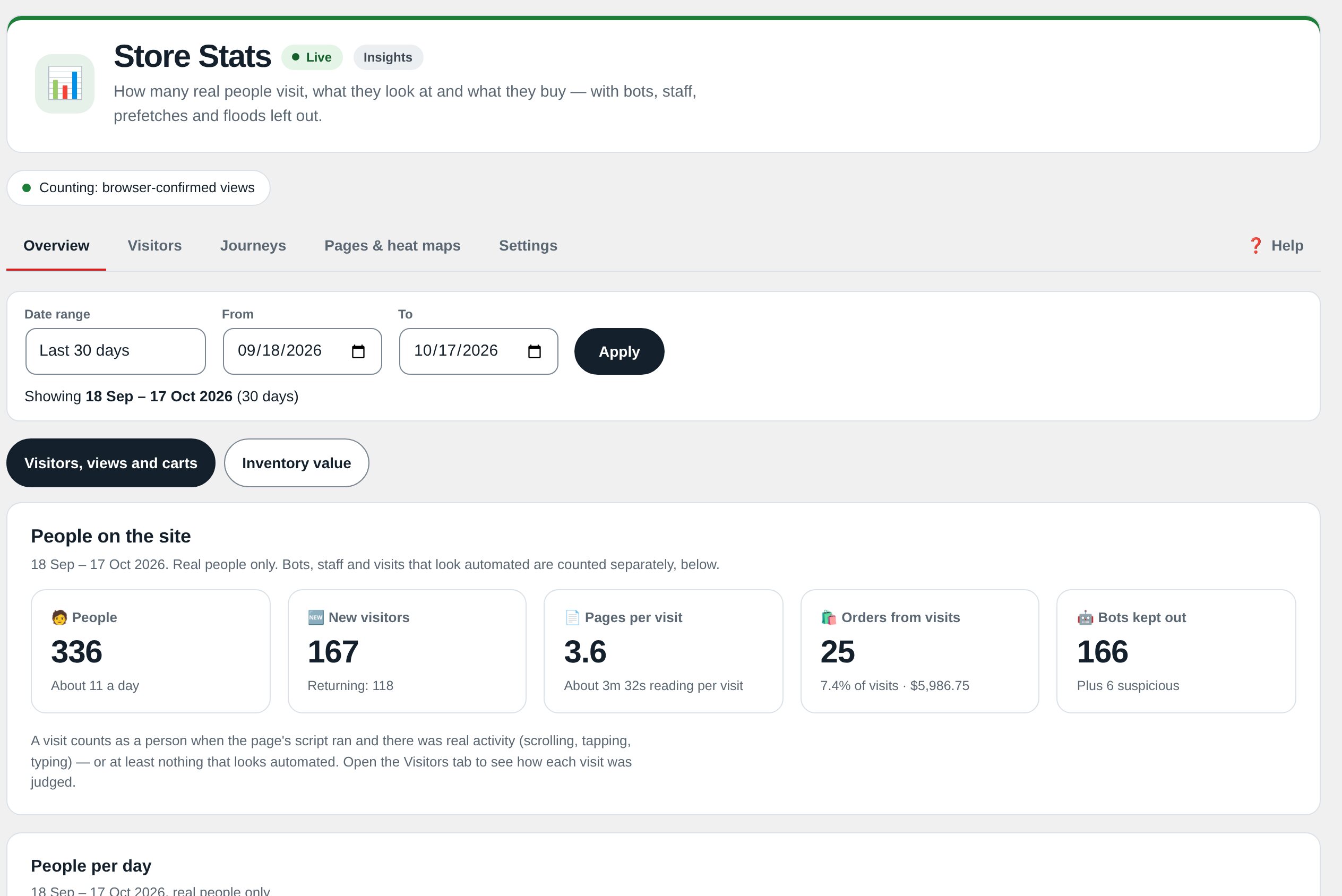
- Store Stats: site, category and product drill-down.
- A popularity column you can sort by.
What it does for you
WooCommerce tells you what sold. It does not tell you what almost sold — which products people keep opening and carting without buying, and which listings nobody looks at. Analytics fills that gap with small self-contained counters stored as post meta in your own database: no cron, no JavaScript tracker, no external service. Store Stats rolls them up from site totals to category to product in two clicks.
Features
- Per-product view counterLifetime total plus a rolling 7-day figure on every product page view.
- Per-product add-to-cart counterThe same pair for carts, counted by quantity.
- Self-resetting weekly bucketsKeyed to the ISO week; the first touch in a new week starts fresh. Nothing to babysit.
- Honest numbersViews from users who can edit products are skipped; obvious bots filtered by user agent.
- Social-proof line“12 views this week · 3 added to carts” under the price — only metrics with a number are shown.
- Products-list columnsViews / Carts / Sold, this week and all time, sortable by lifetime totals.
- Store Stats dashboardSite totals → per-category table → per-product drill-down with popularity score and stock status, edit and view links.
- Plays with other reportsLinks out to WooCommerce Analytics and WP Statistics for what they cover; strips other plugins’ notices from Factorize screens.
- Private by designAggregate numbers only — no cookies, no per-visitor tracking, nothing leaves your server.
Use cases
A merchandiser looking for products that attract views or carts but few purchases.
Example
Compare products with many carts but few sales to spot pricing or trust issues.
Quick setup
- Activate (WooCommerce required). Counting starts immediately; there are no keys.
- Browse a few products in a private window (your own logged-in views are skipped), add something to the cart, then open Factorize → Store Stats.
Configuration
1.0.0 ships no tunables; factorize-analytics_options and the factorize-analytics_config filter exist for future keys. Counters live in six post-meta keys per product (_et_views_total/_week/_week_key, _et_carts_total/_week/_week_key).
Step-by-step guide
- Find what almost sellsStore Stats → a category → sort by carts: products with many carts and few sales are pricing or trust problems.
- Find dead listingsSame table sorted by views ascending: products nobody opens are candidates to re-photograph, re-title, or pull.
- Read the columnsProducts → All Products shows Views / Carts / Sold as this week / all time — sort by Views to triage.
Q&A
Why don’t my own page views show up?
By design: logged-in users who can edit products are skipped so merchandising work does not inflate the stats.
What about GDPR/CCPA?
Only aggregate counters are stored; no cookies or personal data. Mention it in your privacy policy; ask for counting to be limited if you want.
What happens to the data on uninstall?
Only the plugin’s options are removed; counters stay so reinstalling picks up the history.
Roadmap
- View → cart → purchase funnel
- CSV export
- Weekly email digest
- Dead-listing and low-stock alerts
What I need from you
Recent changes
- 1.6.3
- Skips recording on a Simulate studio preview request (factorize_preview_request).
- 1.6.2
- Suite hub 1.12.3: the support bubble lifts above the save bar while the bar is on screen (on phones it no longer covers Save).
- 1.6.1
- Suite hub 1.12.2: an SEO tab on the Factorize dashboard for the new SEO modules.