What it does for you
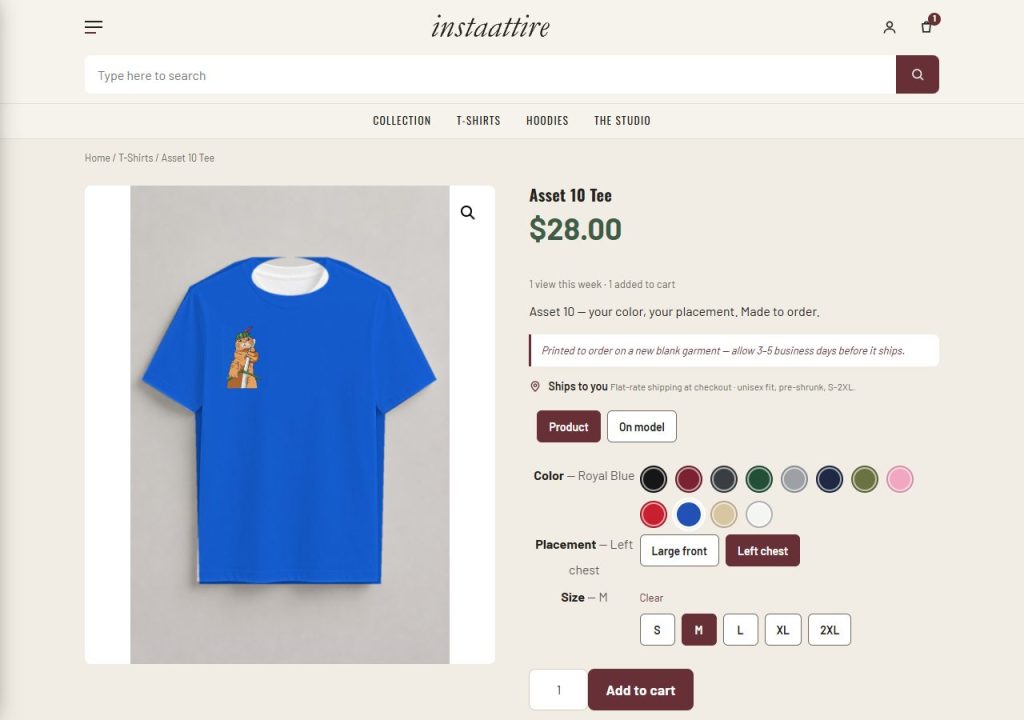
Apparel and print shops sell one design in many garment colors and print placements. WooCommerce can model that as a variable product, but it expects someone to attach a picture to every variation by hand — hundreds of clicks per product, thousands per catalog. Colorways resolves the picture from the file name instead: name your mockups name-color-category.svg (skyline-black-tee.svg), upload them, and every product page, shop card, cart line, order, and email shows the right color automatically. Color swatches replace the dropdown, placements (front, back, left chest, sleeve) become buttons with a print-area marker on the image, and a coverage report tells you exactly which files are still missing.
Every feature
- File-name template{name}-{color}-{category} by default; {name} is the product slug or a per-product override, {category} the first product category or its override. Files are found in the media library by name or in the uploads/colorways folder.
- Placement mockupsWhen name-color-category-location.svg exists (skyline-black-tee-back.svg) the picture switches to it; otherwise a dashed print-area marker shows where the print goes, with per-category coordinates you set once.
- Swatches, not dropdownsThe Color select becomes round swatches (hex from the term’s Swatch color or a built-in map of ~60 apparel names); Placement and Size become buttons. The WooCommerce selects stay as the source of truth, so prices, stock, and add-to-cart are untouched.
- Instant switchingTapping a swatch swaps the gallery image immediately, before all attributes are chosen; WooCommerce’s own reset is intercepted so the colorway stays.
- Shop-card swatchesA swatch strip under each card: hover or tap switches the card image, and the card then opens the product with that color preselected.
- Carts, orders, emails, block cartVariations without their own image resolve to the colorway attachment, so every downstream screen shows the chosen color.
- Sanitized SVG uploadsAdministrators and shop managers may upload SVG; scripts, event handlers, external references, entities, and imports are stripped or the file is refused.
- Coverage reportEvery product × color with found / missing, placement counts, and a copyable list of the exact missing file names.
- Placeholder mockupsFlat garment drawings (tee, hoodie, tank, long sleeve, sweatshirt, cap, tote) in the right color, optionally one per placement, so a store can launch before the real artwork exists.
- Example catalogTwelve designs × 8 colors × placements as real variations, generated mockups, featured images, default attributes — idempotent by SKU.
- Library importerPoint it at a folder of mockups (any depth, even a read-only mount): one variable product per design × garment, every color × placement as a variation, the collection folder and the garment as categories, featured images set. Re-runnable; names and prices you changed are kept.
- ViewsA {view} token for renderings the customer does not buy — a flat product shot vs. the garment on a person — with a Product / On model toggle on the product page; cards and carts use the default view.
- Lazy mediaFolder files are registered in the media library the first time a cart, order, or email needs an attachment id, so a 3 GB library never has to be bulk-imported.
- Mobile and desktopSwatches wrap, buttons meet 44-px tap targets, and the marker follows the rendered image at any size.
- WP-CLIwp colorways examples | scan | import [–collection –limit –dry-run] | coverage | generate [–placements] | rescan [–index-only]
Setup
- Activate with WooCommerce active; Factorize → Colorways appears under Selling.
- Examples tab → Create the example catalog to see the whole flow immediately.
- Products → Attributes: Color (and optionally Placement, Size) as global attributes; variable products use them for variations (size may be Any).
- Name mockups {name}-{color}-{category}.svg and upload them, or FTP them into uploads/colorways and press Rescan.
- Coverage tab: every row green means every color has a picture.
Configuration
| key | default | effect |
|---|---|---|
template | {name}-{color}-{category} | file-name template, no extension |
folder | colorways | library sub-folder under uploads |
extensions | svg, png, jpg, jpeg, webp | tried in order |
color_attribute / location_attribute / size_attribute | color / location / size | global attribute slugs (pa_*) |
views / default_view | product, person / product | alternate renderings when the template has {view} |
default_location | front | main-image placement when the template has {location} |
garments | tee, hoodie, tank, … | words the importer accepts as {category} |
card_swatches / card_swatch_limit | true / 6 | swatch strip on shop cards |
overlay / overlay_labels | true / true | print-area marker on the product image |
svg_uploads | true | sanitized SVG uploads for managers |
areas | per category | print areas as [x, y, w, h] percent of the image |
colors | ~60 names | slug → hex swatch map |
Set any subset with WP-CLI — wp option update factorize-colorways_options '{"key":"value"}' --format=json — or return values from the factorize-colorways_config filter in a small plugin. Legacy empire-* option names are still read.
A pa_color term’s own Swatch color always wins over the name map. Product-level overrides: Colorway image name, Colorway image category, Design label (for placeholders).
Tutorial
- See the demoFactorize → Colorways → Examples → Create the example catalog. Open Skyline Tee: tap Navy, then Back — the image and the marker follow. Add it to the cart: the cart shows the navy tee.
- Name one real fileExport a mockup as skyline-black-tee.svg, upload it through Media → Add New. Reload Skyline Tee: black now shows your artwork; the other colors still show placeholders.
- Bulk-load a catalogExport all mockups with the template names, FTP them into wp-content/uploads/colorways/ (sub-folders per collection and design are fine), press Rescan on the Coverage tab, and copy any still-missing names back to your export tool.
- Build the store from the folderSet the template to match your names — InstaAttire uses {name}-{color}-{view}-{category}-{location} for files like asset-10-black-person-hoodie-large-front.svg — then Examples → Import the catalog from the library (or wp colorways import). 62 designs × 2 garments became 124 products with 2,976 color × placement variations in one run.
- Tune the print areasSettings → Print areas: adjust the JSON for your categories once (percent of the image); the marker is correct on every screen size.
- Turn off what you do not needUntick Product cards or the marker in Settings; set a larger swatch limit for cards with many colors.
Questions
Do I have to assign images to variations?
No — that is the point. A variation’s own image still wins if you set one.
What if a color has no file?
The swatch shows a striped ‘no image yet’ pattern, the product falls back to its featured image, and the Coverage tab lists the file name to create.
Can the template be different?
Yes: any order of {name}, {color}, {category}, and optional {location}, as long as {color} is present.
Does anything leave my server?
No.
Roadmap
- Customer text/logo personalization with live preview in the print area
- Per-color pricing rules
- Export the missing-file list as a job for a mockup generator