FACTORIZE
Factorize · Selling

Factorize Colorways

Free · GPLv2+ Swatches, a placement picker, and product images that switch by color from a file-name template — no images assigned by hand.

What it does for you

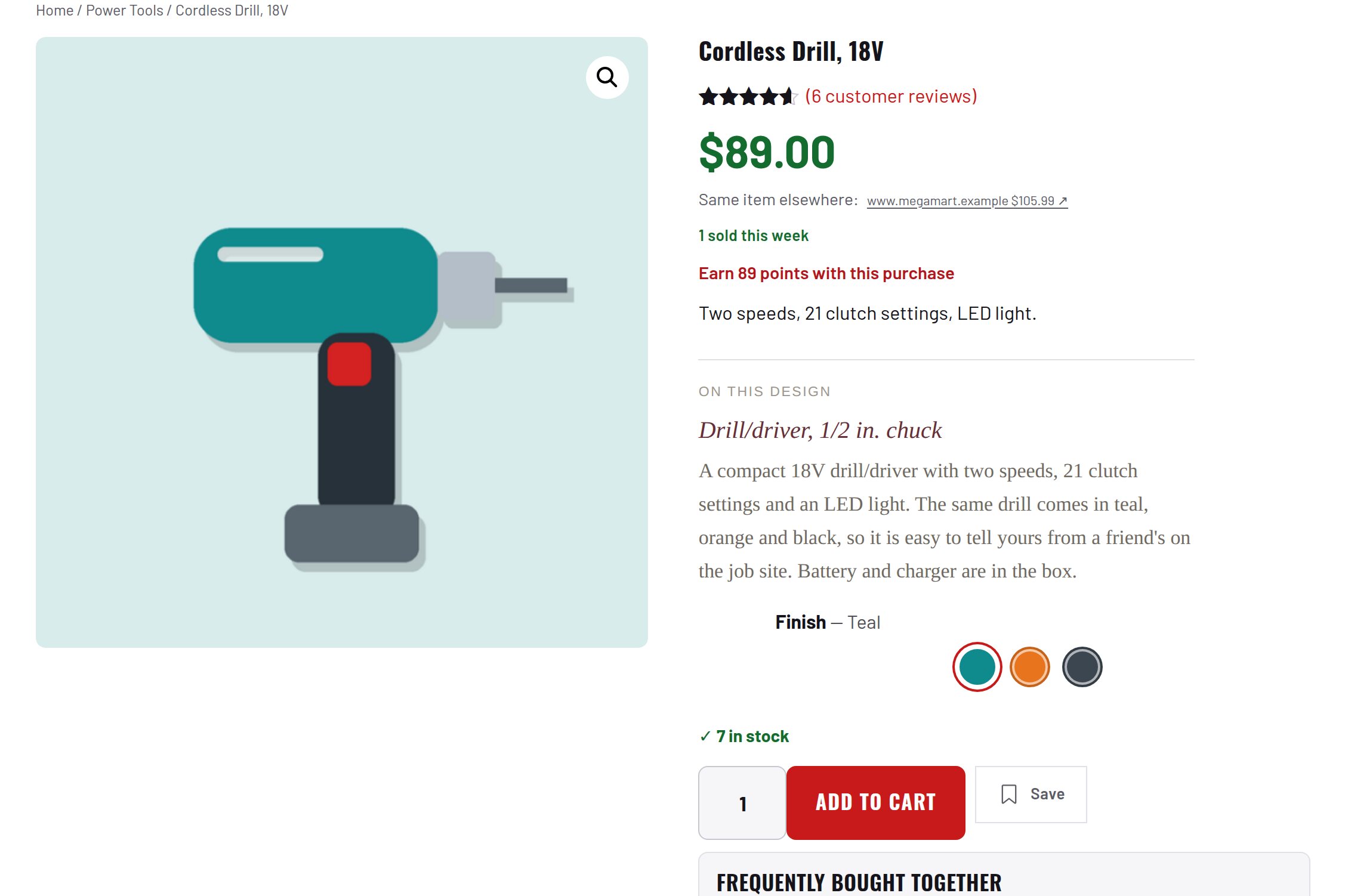
Apparel and print shops sell one design in many garment colors and print placements. WooCommerce can model that as a variable product, but it expects someone to attach a picture to every variation by hand — hundreds of clicks per product, thousands per catalog. Colorways resolves the picture from the file name instead: name your mockups name-color-category.svg (skyline-black-tee.svg), upload them, and every product page, shop card, cart line, order, and email shows the right color automatically. Color swatches replace the dropdown, placements (front, back, left chest, sleeve) become buttons with a print-area marker on the image, and a coverage report tells you exactly which files are still missing.

Every feature

Setup

  1. Activate with WooCommerce active; Factorize → Colorways appears under Selling.
  2. Examples tab → Create the example catalog to see the whole flow immediately.
  3. Products → Attributes: Color (and optionally Placement, Size) as global attributes; variable products use them for variations (size may be Any).
  4. Name mockups {name}-{color}-{category}.svg and upload them, or FTP them into uploads/colorways and press Rescan.
  5. Coverage tab: every row green means every color has a picture.

Configuration

keydefaulteffect
template{name}-{color}-{category}file-name template, no extension
foldercolorwayslibrary sub-folder under uploads
extensionssvg, png, jpg, jpeg, webptried in order
color_attribute / location_attribute / size_attributecolor / location / sizeglobal attribute slugs (pa_*)
views / default_viewproduct, person / productalternate renderings when the template has {view}
default_locationfrontmain-image placement when the template has {location}
garmentstee, hoodie, tank, …words the importer accepts as {category}
card_swatches / card_swatch_limittrue / 6swatch strip on shop cards
overlay / overlay_labelstrue / trueprint-area marker on the product image
svg_uploadstruesanitized SVG uploads for managers
areasper categoryprint areas as [x, y, w, h] percent of the image
colors~60 namesslug → hex swatch map

Set any subset with WP-CLI — wp option update factorize-colorways_options '{"key":"value"}' --format=json — or return values from the factorize-colorways_config filter in a small plugin. Legacy empire-* option names are still read.

A pa_color term’s own Swatch color always wins over the name map. Product-level overrides: Colorway image name, Colorway image category, Design label (for placeholders).

Tutorial

  1. See the demoFactorize → Colorways → Examples → Create the example catalog. Open Skyline Tee: tap Navy, then Back — the image and the marker follow. Add it to the cart: the cart shows the navy tee.
  2. Name one real fileExport a mockup as skyline-black-tee.svg, upload it through Media → Add New. Reload Skyline Tee: black now shows your artwork; the other colors still show placeholders.
  3. Bulk-load a catalogExport all mockups with the template names, FTP them into wp-content/uploads/colorways/ (sub-folders per collection and design are fine), press Rescan on the Coverage tab, and copy any still-missing names back to your export tool.
  4. Build the store from the folderSet the template to match your names — InstaAttire uses {name}-{color}-{view}-{category}-{location} for files like asset-10-black-person-hoodie-large-front.svg — then Examples → Import the catalog from the library (or wp colorways import). 62 designs × 2 garments became 124 products with 2,976 color × placement variations in one run.
  5. Tune the print areasSettings → Print areas: adjust the JSON for your categories once (percent of the image); the marker is correct on every screen size.
  6. Turn off what you do not needUntick Product cards or the marker in Settings; set a larger swatch limit for cards with many colors.

Questions

Do I have to assign images to variations?

No — that is the point. A variation’s own image still wins if you set one.

What if a color has no file?

The swatch shows a striped ‘no image yet’ pattern, the product falls back to its featured image, and the Coverage tab lists the file name to create.

Can the template be different?

Yes: any order of {name}, {color}, {category}, and optional {location}, as long as {color} is present.

Does anything leave my server?

No.

Roadmap

What I need from you

The inputs only the store owner can supply — keys, wording, photos, decisions, hardware — with the exact screen or command for each: Factorize Colorways — what I need from you (PDF).